How to edit a vehicle video tour in HelloRamp Studio
To edit a vehicle video tour in HelloRamp Studio, open the processed tour, tap Edit, delete the clip you want to replace, record the new clip, update the voiceover script, save your changes, upload to regenerate the tour and publish it.
Open an existing processed tour, replace a clip, save the change, and generate an updated preview.
Before you start, have a processed HelloRamp Studio video tour and the replacement clip for the section you are updating.
How do I edit a video tour in HelloRamp Studio?
- Open a processed tourChoose a processed tour from the library to start editing its clips, script, and final output.
- Enter edit modeTap Edit to update the clips and regenerate the video tour.
- Choose the clip to replaceSelect the walkaround clip to swap it with updated footage.
- Delete the current clipRemove the current walkaround clip so you can replace it with updated footage.
- Record the replacement clipChoose Record Video to capture a new walkaround clip for this section.
- Update the voiceover scriptClick the voiceover script section to replace the existing copy with your custom script.
- Save your script changesClick Save Changes to apply both the updated clip and the custom voiceover script to this scene.
- Render the updated tourUpload Video to regenerate the full tour with your new clip in place.
- Publish the updated resultClick Publish to make the edited video tour live with your updated clip and script changes.
VIDEO TOURS
Helloramp
0
Not Uploaded
3
Processed
0
Live
 processed▶ 01:18
#WBXHT3C34JH31439
03/02/26
2018 BMW X1
 processed▶ 01:19
#3KPF54AD2NE448887
03/02/26
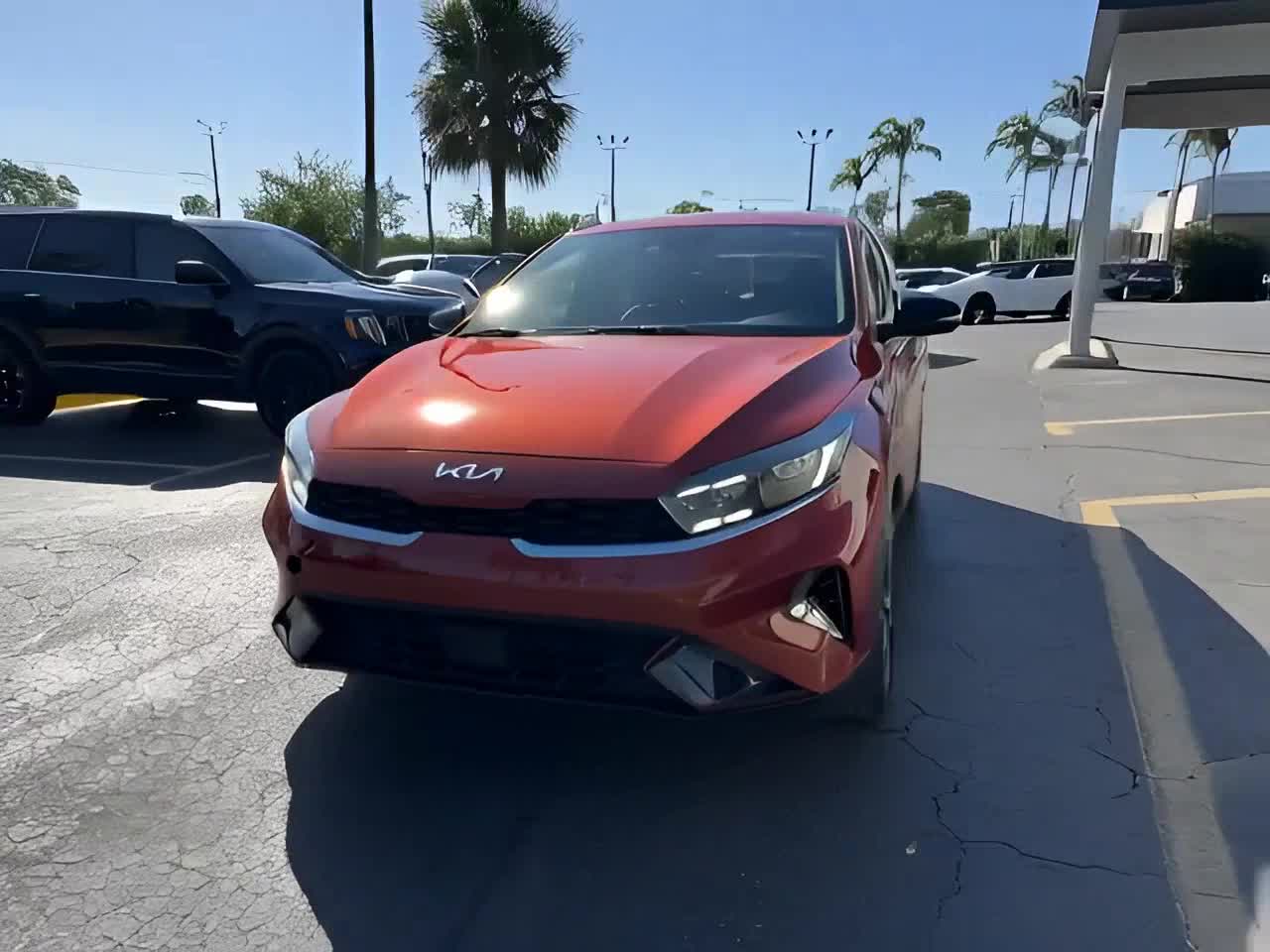
2022 KIA Forte
 processed▶ 01:18
#WA1GAAFY3N2125000
02/02/26
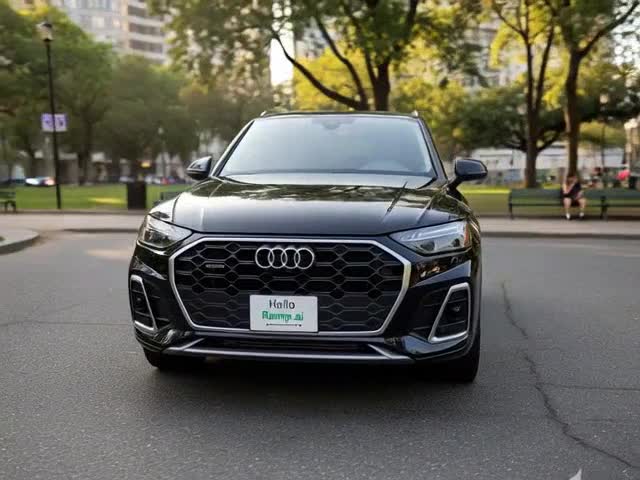
2022 AUDI Q5
Photobooth
Magic Media
Video Tour
Settings
Questions about editing a video tour
How to open a processed tour, enter edit mode, replace a clip, update the voiceover script, save the update, regenerate the final video and publish the revised result in HelloRamp Studio.
A processed HelloRamp Studio video tour and a replacement clip for the section being updated. The edits are made in the HelloRamp Studio Video Tour editor.
No. Choose the clip to replace, delete it, record the replacement and save. Upload Video then regenerates the full tour with the new clip in place.
Yes. Click the voiceover script section of the scene, replace the existing copy with your own script and click Save Changes. The script change is applied when the tour is regenerated.
Follow the guide to creating a vehicle video tour: load the vehicle by VIN, generate suggested clips, record them, then upload and publish. See HelloRamp Studio for what a tour includes.